Five things to check, in order
- Bring the devices together. Keep the iPhone and the Watch near each other, unlock the iPhone and open the Health app. The Watch passes on its data when the two are connected.
- Check Fitness Tracking. In the Health app, tap your profile picture, then Devices, then Privacy Settings, and make sure Fitness Tracking is on.
- Check the Apple Account. Health data syncs across devices when they are signed in to the same Apple Account, connected to the internet and updated to the latest software.
- Look at the sources for Steps. In the Health app: Browse, Activity, Steps, then “Data Sources & Access”. Your Watch should be in the list. How the list works.
- Restart both devices. Turn the Watch and the iPhone off and on again, then open the Health app on the iPhone.
What to check in Stridune
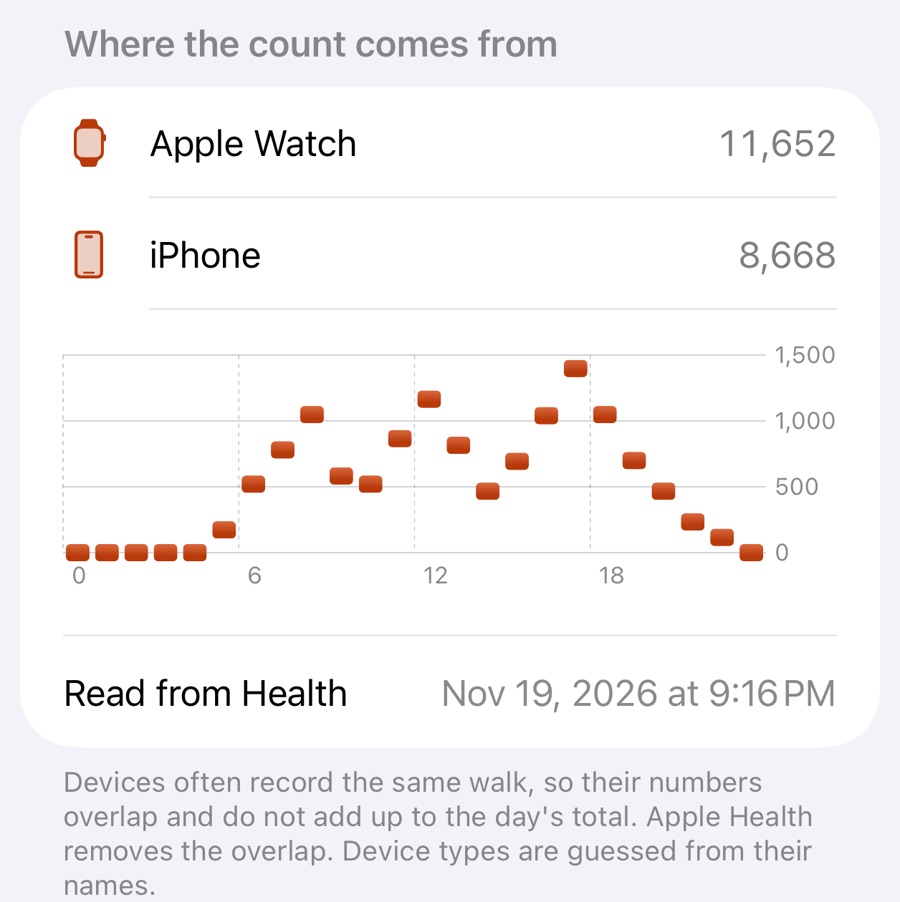
- Pull down on the Today screen to read Apple Health again.
- Open the day and look at “Where the count comes from”. If the Watch is missing there, its data has not reached Apple Health on the iPhone yet.
- If Stridune shows no steps at all, check its access: Settings app, Health, Data Access & Devices, Stridune, and allow reading Steps. Apple does not tell an app whether access was refused, so Stridune can only say that no data came back.
Late is not lost
A walk with only the Watch on you can take a while to show on the iPhone. When it arrives, the day’s total is corrected, and in Stridune the day’s result and your streak are worked out again. A day stays open for late data for two days after it ends. Then it is locked in.
Sources, read on 19 November 2026: Apple Support, “Manage Health data”, support.apple.com/en-us/108779; iPhone User Guide, “Back up your Health data”. Menu names can change with new versions of iOS.